Help
Short guides with the real screens of your Pascal.
Last updated October 28, 2026
Pair your phone
Turn Pascal on
Press ON, top row, far right. The first time, it shows a code.
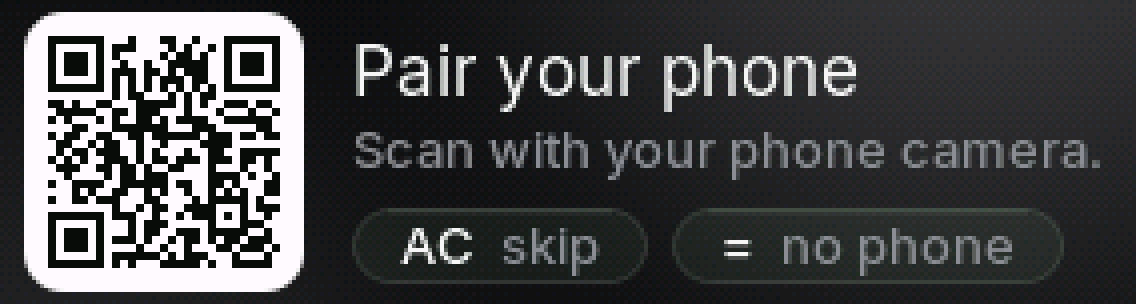
Scan the code with your phone camera
It opens the Pascal app and links it to this calculator. Nothing to type.
The code melts into a check
Your phone is linked. Now the app shows Pascal's screen, live, and Cal says hi.

No phone? Press = on that screen to set up wifi on the calculator instead. You can pair later: SHIFT, MODE, then Pair with the app.
Set up wifi
Open Settings
Press SHIFT, then MODE. Wifi is the first row.
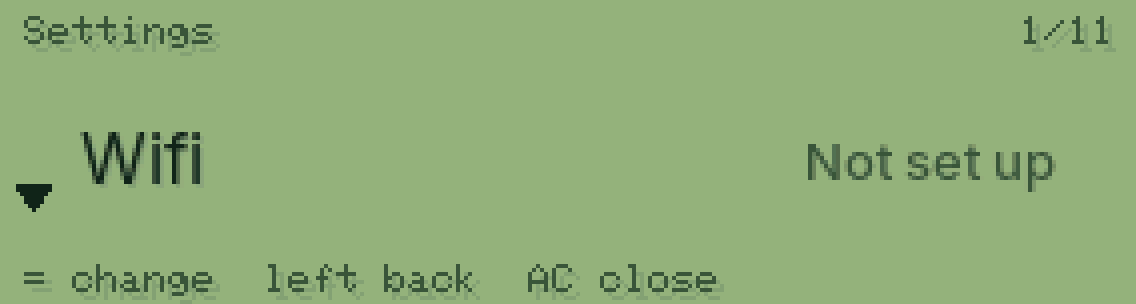
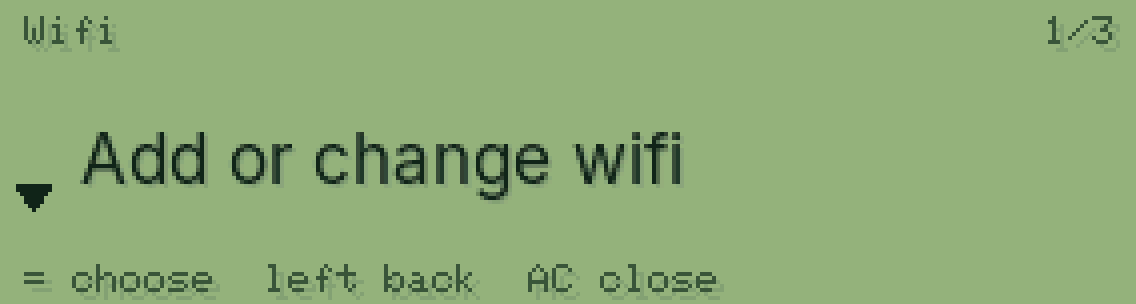
Press = twice
Once to open Wifi, once on Add or change wifi.
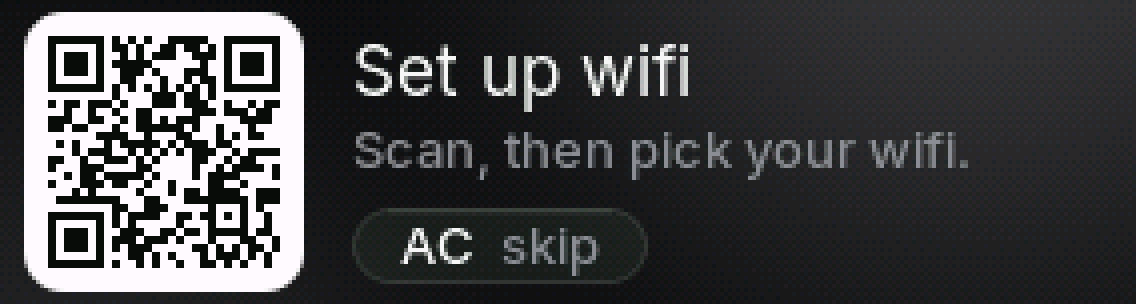
Scan the code with your phone
Your phone joins Pascal for a moment and shows a page with the wifi near you.
Pick your wifi and type its password
If the password is wrong, Pascal tells you right away so you can try again.

Connected!
Pascal remembers it and joins by itself next time.

Pascal uses 2.4 GHz wifi, like most small devices. Using an iPhone hotspot? Turn on Maximize Compatibility.
Hint first
Open Settings
Press SHIFT, then MODE.
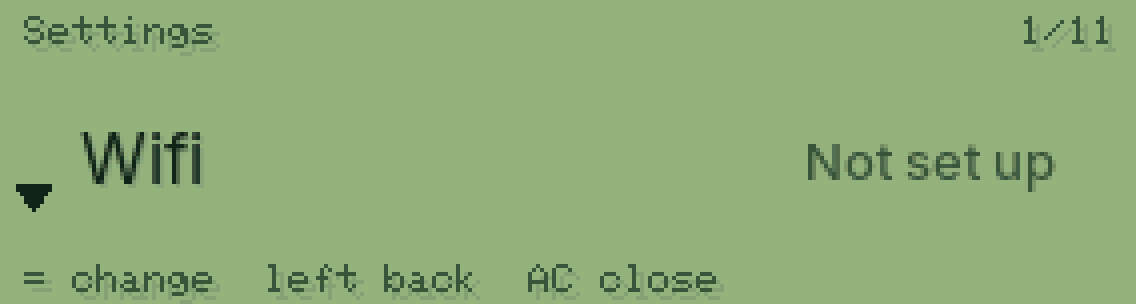
Go down to AI answers
Press ▼ three times. It is row 4 of 11.
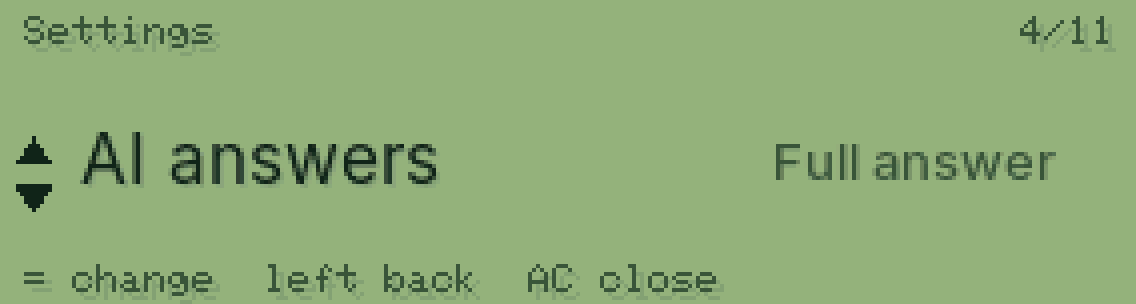
Press = to switch to Hint first
Now ALPHA gives you a nudge first, so you can try it yourself. Press = on the answer for every step.

You can change this in the app too: Me, then Calculator settings.
Games
Press MODE
Top row, second from the right. It opens the apps.
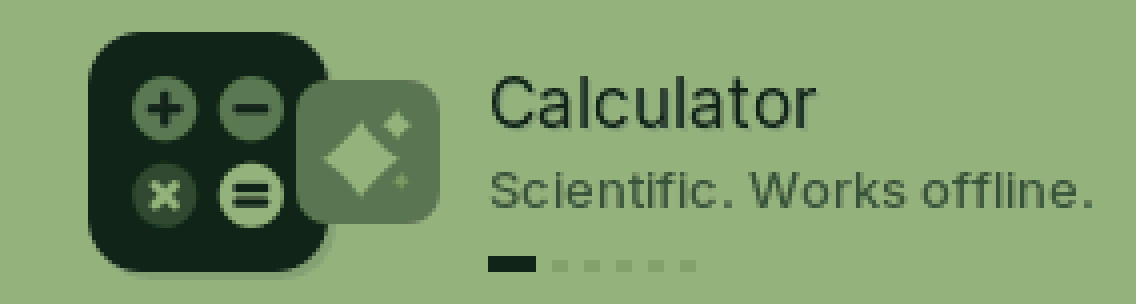
Press 4 to jump to Games
Or press ▶ until you get there. Numbers 1 to 6 jump straight to an app.

Pick a game
Math Sprint or Snake. Press ▼ to switch, = to play.
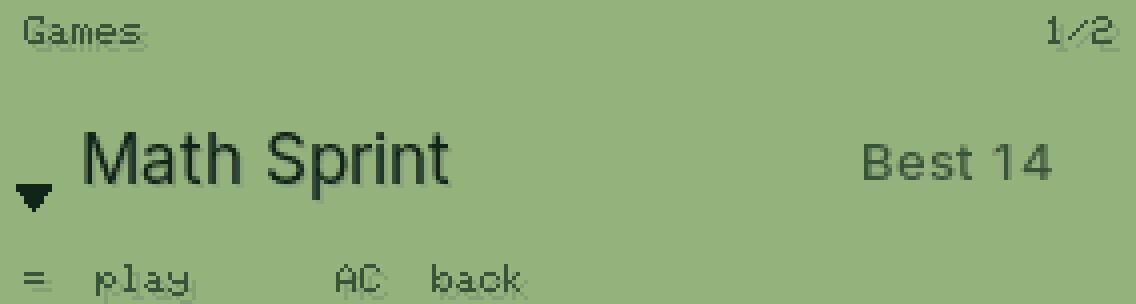
Math Sprint
Type the answer. As many as you can in 60 seconds, and it gets harder.
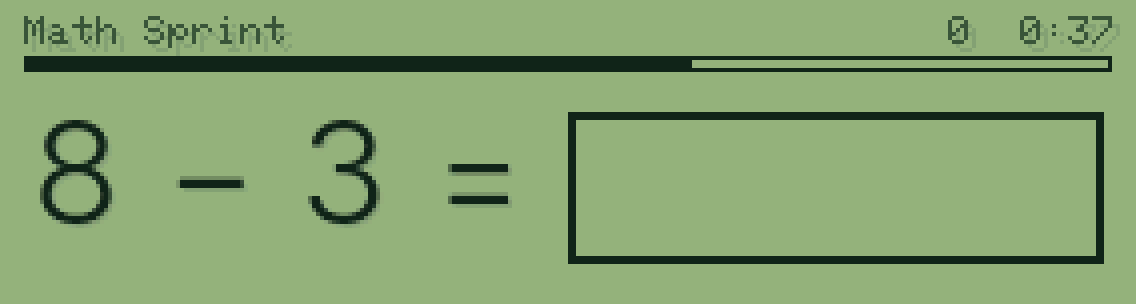
Beat your best
Pascal saves your best score. = plays again, AC goes back.

Snake is in Games too: the arrows on the round pad turn the snake.
Exam mode
Open Settings
Press SHIFT, then MODE.
Go down to Exam mode
Press ▼ (the bottom of the round pad) seven times. It is row 8 of 11.
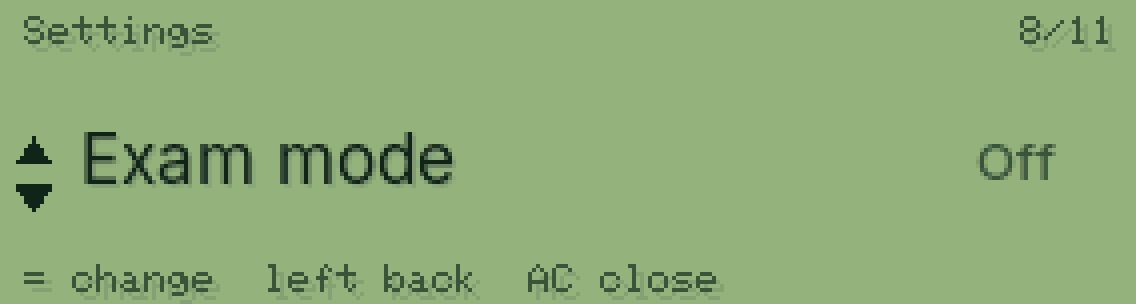
Press = to turn it on
ALPHA, the camera, wifi and the phone link turn off.
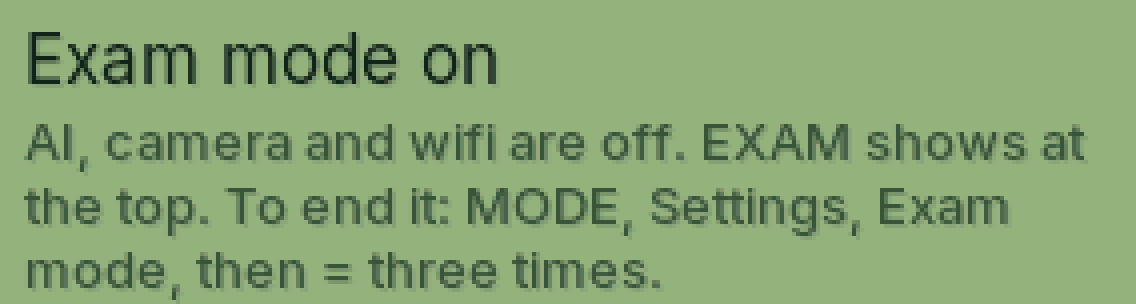
EXAM stays on the screen
Press AC twice to get back to the calculator. It works as normal, and a teacher can see EXAM at the top.
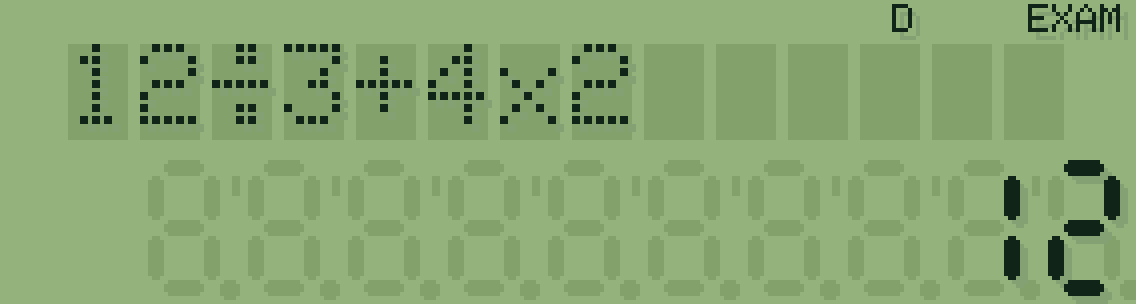
To end it, press = three times
In Settings, on Exam mode. Three presses means it can't end by accident.

Every school has its own rules. Ask your teacher before a test.
Something wrong?
- Wifi won't join: your Pascal uses 2.4 GHz wifi. Using an iPhone hotspot? Turn on Maximize Compatibility.
- Wrong wifi password: your Pascal tells you right away. Scan the code again and retype it.
- ALPHA does nothing: check that EXAM isn't showing at the top. In exam mode, Cal, the camera and wifi are off on purpose.
- Lost the pairing code: press SHIFT, then MODE, then Pair with the app.
- Still stuck: email support@pascalculator.com with what you see on the screen. A photo helps.